


JSON Viewer
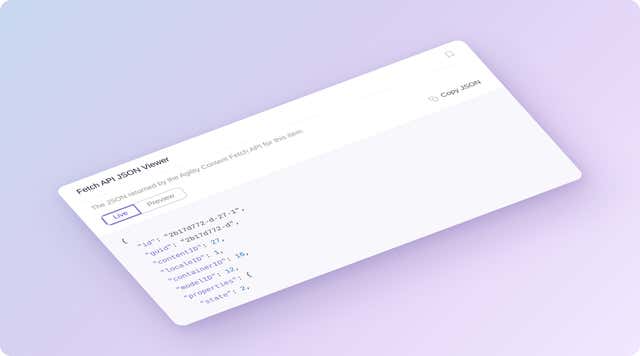
See the raw Content Fetch API JSON for any content item or page, in Live and Preview modes, from the Agility sidebar. Check exactly what your front end receives before you start debugging.
- Utilities
Stop guessing what your front end is receiving
When a page renders wrong, the first question is what the API actually returned. Answering it usually means building a request by hand. JSON Viewer puts the response in the sidebar of the item or page you're looking at.
What you can do
- Content item sidebar: view the Content Fetch API JSON for the content item you have open.
- Page sidebar: view the Content Fetch API JSON for the page you have open.
- Live and Preview: compare what the API returns in each mode.
- Nothing to configure: the manifest declares no settings or install screen.
Who it's for
Developers and technical editors who debug content, and anyone checking that a change reached the API before they raise a question. It's a viewer, not an editor: it shows the response and leaves your content alone.
There's nothing to configure: install it from Settings → Apps, and the docs show how to use it.
Get started
- Open Apps In Agility, go to Settings → Apps.
- Install JSON Viewer Click Install, find JSON Viewer and continue through the install.
- Open an item or page Open any content item or page in the editor.
- Open the sidebar Select JSON Viewer in the right-hand sidebar to see the Fetch API JSON, in Live or Preview mode.
Screenshots
Banner